> ## Documentation Index
> Fetch the complete documentation index at: https://docs.goshippo.com/llms.txt
> Use this file to discover all available pages before exploring further.
# Adding an account to your ups.com User ID
> Add your UPS account number to your ups.com User ID using PIN or invoice verification before connecting to Shippo.
This document is relevant to customers that have connected their own UPS account to Shippo.
**Note**
Before starting the UPS OAuth authentication flow, it is critical to add every UPS account number to your ups.com user ID.
If you do not add your UPS account number(s) before starting the OAuth authentication flow, then UPS will return an error (code "120100") during label purchase.
Log in to [https://www.ups.com](https://www.ups.com) to add the account number(s) to your ups.com user ID. There are two ways to complete this outlined below.
## PIN Verification Method
* Log in to [https://www.ups.com](https://www.ups.com)
* Click on your profile icon (the circle icon at the top right of the page), and select "Accounts and Payment"
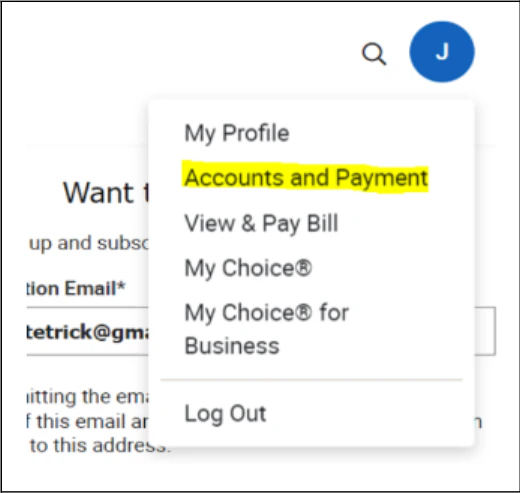 * Once on the "My Accounts and Payment Methods" page
* Locate the "Add a Payment Method" dropdown
* Click **Add Existing Account**
* Click the **Add** button
* Once on the "My Accounts and Payment Methods" page
* Locate the "Add a Payment Method" dropdown
* Click **Add Existing Account**
* Click the **Add** button
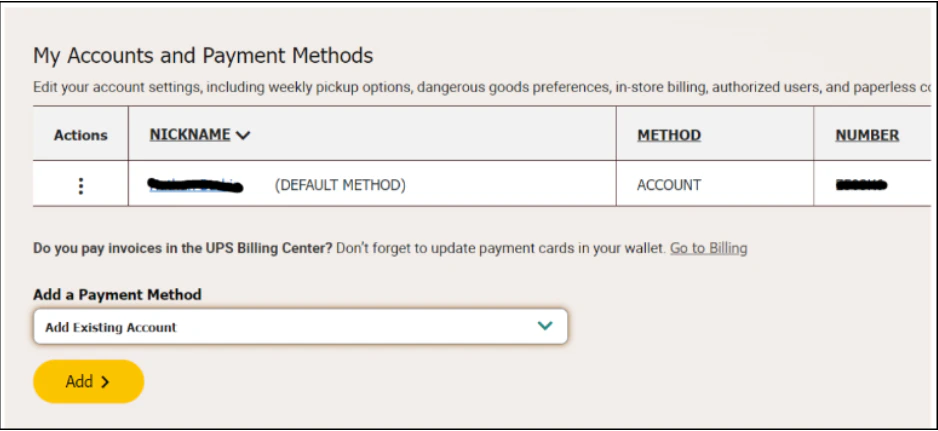 * On the "Add an Existing Account" page
* Enter your account as the Account Number
* Give the account a nickname
* Enter the Postal Code associated with the account
* Click **Next**
* On the "Add an Existing Account" page
* Enter your account as the Account Number
* Give the account a nickname
* Enter the Postal Code associated with the account
* Click **Next**
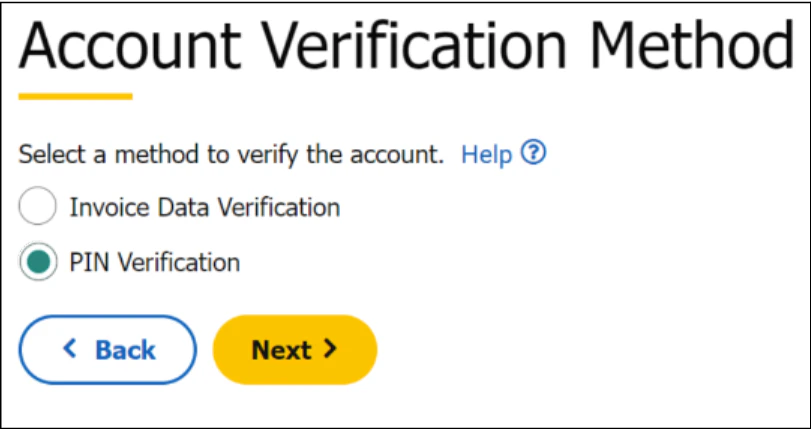
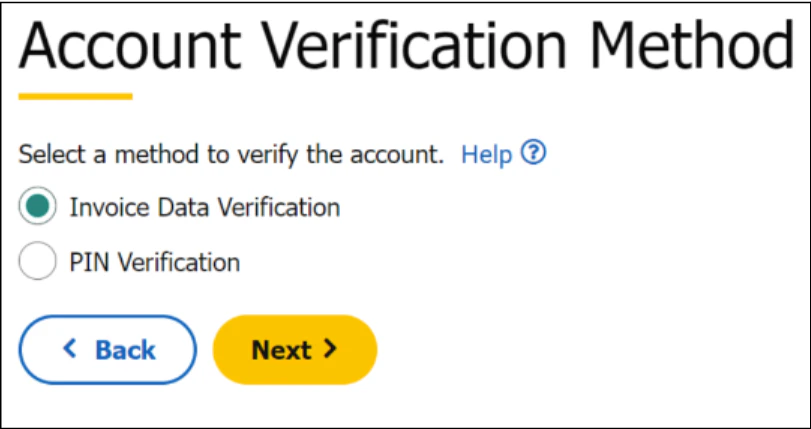
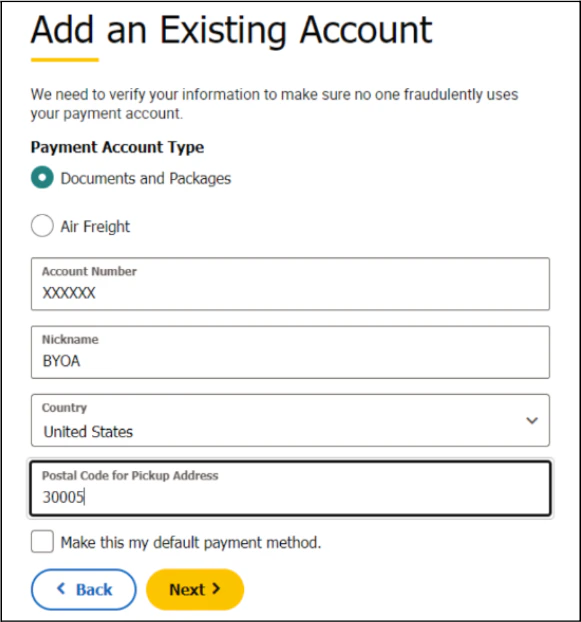 * On the "Account Verification Method" page
* Select **PIN verification**
* Click **Next**
* This will generate an email with the PIN number to the *email address associated with the new account*.
* On the "Account Verification Method" page
* Select **PIN verification**
* Click **Next**
* This will generate an email with the PIN number to the *email address associated with the new account*.
 * On the "Account Verification" page
* Enter the PIN from the email sent to the email address associated with the account
* Enter the email address associated with the account
* Click **Next**
## Invoice Verification Method
* Log in to [https://www.ups.com](https://www.ups.com)
* Click on your profile icon (the circle icon at the top right of the page), and select "Accounts and Payment"
* Once on the "My Accounts and Payment Methods" page
* Locate the "Add a Payment Method" dropdown
* Click **Add Existing Account**
* Click the **Add** button
* On the "Add an Existing Account" page
* Enter your account as the Account Number
* Give the account a nickname
* Enter the Postal Code associated with the account
* Click **Next**
* On the "Account Verification Method" page
* Select **Invoice Data Verification**
* Click **Next**
* This will generate an email with the PIN number to the *email address associated with the new account*.
* On the "Account Verification" page
* Enter the PIN from the email sent to the email address associated with the account
* Enter the email address associated with the account
* Click **Next**
## Invoice Verification Method
* Log in to [https://www.ups.com](https://www.ups.com)
* Click on your profile icon (the circle icon at the top right of the page), and select "Accounts and Payment"
* Once on the "My Accounts and Payment Methods" page
* Locate the "Add a Payment Method" dropdown
* Click **Add Existing Account**
* Click the **Add** button
* On the "Add an Existing Account" page
* Enter your account as the Account Number
* Give the account a nickname
* Enter the Postal Code associated with the account
* Click **Next**
* On the "Account Verification Method" page
* Select **Invoice Data Verification**
* Click **Next**
* This will generate an email with the PIN number to the *email address associated with the new account*.
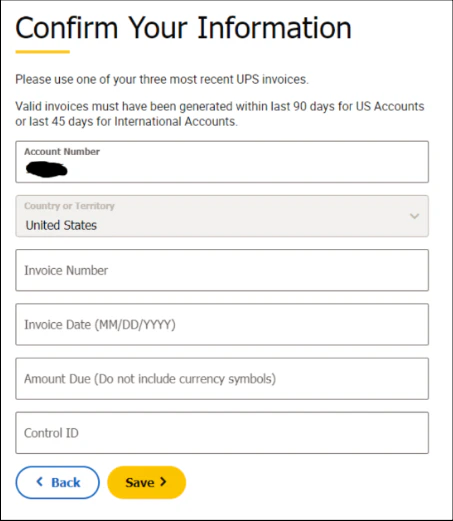
 * On the "Confirm Your Information" page
* Enter the requested information from *your most recent UPS invoice*
* Click **Save**
* On the "Confirm Your Information" page
* Enter the requested information from *your most recent UPS invoice*
* Click **Save**
 After completing one of the above, the account is now associated with your ups.com User ID.