> ## Documentation Index
> Fetch the complete documentation index at: https://docs.goshippo.com/llms.txt
> Use this file to discover all available pages before exploring further.
# Testing the Shippo API
> Use Shippo test mode to try all API features, including label creation, without being charged.
To help you learn about all the features in the Shippo API, we have created a test mode.
You can use the test mode to try all Shippo features including purchasing a label, without any charge.
This is useful when learning about the Shippo API for the first time, integrating it into your project, and testing out new features.
## How to use the Shippo Test Mode
To use Shippo test mode, first generate a test key in [API configuration in the Shippo API portal](https://portal.goshippo.com/api-config/api).
 Click **Create new test key** and copy the resulting key. It will begin with `shippo_test_`.
To use test mode, insert your Shippo API test key in place of `` for **every** API call.
The example below creates a new address object.
**Note**
When testing, we recommend you use real verifiable addresses. This helps avoid errors due to malformed addresses.
```shell title="cURL" theme={null}
curl https://api.goshippo.com/addresses/ \
-H "Authorization: ShippoToken " \
-d name="Shawn Ippotle" \
-d company="Shippo" \
-d street1="215 Clayton St." \
-d street2="" \
-d city="San Francisco" \
-d state="CA" \
-d zip=94117 \
-d country="US" \
-d phone="+1 555 341 9393" \
-d email="shippotle@shippo.com"\
-d is_residential=True\
-d metadata="Customer ID 123456"
```
```Python title="Python" theme={null}
import shippo
from shippo.models import components
shippo_sdk = shippo.Shippo(api_key_header="")
shippo_sdk.addresses.create(
components.AddressCreateRequest(
name="Shawn Ippotle",
company="Shippo",
street1="215 Clayton St.",
city="San Francisco",
state="CA",
zip="94117",
country="US", # iso2 country code
phone="+1 555 341 9393",
email="shippotle@shippo.com"
)
)
```
```PHP title="PHP" theme={null}
require_once('lib/Shippo.php');
Shippo::setApiKey("");
// Create address object
$fromAddress = Shippo_Address::create( array(
"name" => "Shawn Ippotle",
"company" => "Shippo",
"street1" => "215 Clayton St.",
"city" => "San Francisco",
"state" => "CA",
"zip" => "94117",
"country" => "US",
"phone" => "+1 555 341 9393",
"email" => "shippotle@shippo.com"
));
```
```typescript title="TypeScript" theme={null}
// Create address object
const shippo = new Shippo({apiKeyHeader: ''});
const addressFrom = await shippo.addresses.create({
name: "Shawn Ippotle",
company: "Shippo",
street1: "215 Clayton St.",
city: "San Francisco",
state: "CA",
zip: "94117",
country: "US", // iso2 country code
phone: "+1 555 341 9393",
email: "shippotle@shippo.com",
});
```
```Java title="Java" theme={null}
// Java
Shippo.setApiKey('');
HashMap addressMap = new HashMap();
addressMap.put("name", "Mr. Hippo");
addressMap.put("company", "Shippo");
addressMap.put("street1", "215 Clayton St.");
addressMap.put("city", "San Francisco");
addressMap.put("state", "CA");
addressMap.put("zip", "94117");
addressMap.put("country", "US");
addressMap.put("phone", "+1 555 341 9393");
addressMap.put("email", "support@goshipppo.com");
Address createAddress = Address.create(addressMap);
```
```cs title="C#" theme={null}
using Shippo;
using Shippo.Models.Components;
ShippoSDK sdk = new ShippoSDK(apiKeyHeader: "");
Address address = await sdk.Addresses.CreateAsync(
new AddressCreateRequest()
{
Name = "Shawn Ippotle",
Company = "Shippo",
Street1 = "215 Clayton St.",
City = "San Francisco",
State = "CA",
Zip = "94117",
Country = "US",
Phone = "+1 555 341 9393",
Email = "shippotle@shippo.com",
}
);
```
To help you identify test calls, responses in test mode include the key-value pair:
```json theme={null}
"test": true
```
## Carriers in Test Mode
You can use test mode to generate sample shipping labels. These labels are watermarked with **SAMPLE - DO NOT MAIL**. You cannot use these labels for shipping.
Click **Create new test key** and copy the resulting key. It will begin with `shippo_test_`.
To use test mode, insert your Shippo API test key in place of `` for **every** API call.
The example below creates a new address object.
**Note**
When testing, we recommend you use real verifiable addresses. This helps avoid errors due to malformed addresses.
```shell title="cURL" theme={null}
curl https://api.goshippo.com/addresses/ \
-H "Authorization: ShippoToken " \
-d name="Shawn Ippotle" \
-d company="Shippo" \
-d street1="215 Clayton St." \
-d street2="" \
-d city="San Francisco" \
-d state="CA" \
-d zip=94117 \
-d country="US" \
-d phone="+1 555 341 9393" \
-d email="shippotle@shippo.com"\
-d is_residential=True\
-d metadata="Customer ID 123456"
```
```Python title="Python" theme={null}
import shippo
from shippo.models import components
shippo_sdk = shippo.Shippo(api_key_header="")
shippo_sdk.addresses.create(
components.AddressCreateRequest(
name="Shawn Ippotle",
company="Shippo",
street1="215 Clayton St.",
city="San Francisco",
state="CA",
zip="94117",
country="US", # iso2 country code
phone="+1 555 341 9393",
email="shippotle@shippo.com"
)
)
```
```PHP title="PHP" theme={null}
require_once('lib/Shippo.php');
Shippo::setApiKey("");
// Create address object
$fromAddress = Shippo_Address::create( array(
"name" => "Shawn Ippotle",
"company" => "Shippo",
"street1" => "215 Clayton St.",
"city" => "San Francisco",
"state" => "CA",
"zip" => "94117",
"country" => "US",
"phone" => "+1 555 341 9393",
"email" => "shippotle@shippo.com"
));
```
```typescript title="TypeScript" theme={null}
// Create address object
const shippo = new Shippo({apiKeyHeader: ''});
const addressFrom = await shippo.addresses.create({
name: "Shawn Ippotle",
company: "Shippo",
street1: "215 Clayton St.",
city: "San Francisco",
state: "CA",
zip: "94117",
country: "US", // iso2 country code
phone: "+1 555 341 9393",
email: "shippotle@shippo.com",
});
```
```Java title="Java" theme={null}
// Java
Shippo.setApiKey('');
HashMap addressMap = new HashMap();
addressMap.put("name", "Mr. Hippo");
addressMap.put("company", "Shippo");
addressMap.put("street1", "215 Clayton St.");
addressMap.put("city", "San Francisco");
addressMap.put("state", "CA");
addressMap.put("zip", "94117");
addressMap.put("country", "US");
addressMap.put("phone", "+1 555 341 9393");
addressMap.put("email", "support@goshipppo.com");
Address createAddress = Address.create(addressMap);
```
```cs title="C#" theme={null}
using Shippo;
using Shippo.Models.Components;
ShippoSDK sdk = new ShippoSDK(apiKeyHeader: "");
Address address = await sdk.Addresses.CreateAsync(
new AddressCreateRequest()
{
Name = "Shawn Ippotle",
Company = "Shippo",
Street1 = "215 Clayton St.",
City = "San Francisco",
State = "CA",
Zip = "94117",
Country = "US",
Phone = "+1 555 341 9393",
Email = "shippotle@shippo.com",
}
);
```
To help you identify test calls, responses in test mode include the key-value pair:
```json theme={null}
"test": true
```
## Carriers in Test Mode
You can use test mode to generate sample shipping labels. These labels are watermarked with **SAMPLE - DO NOT MAIL**. You cannot use these labels for shipping.
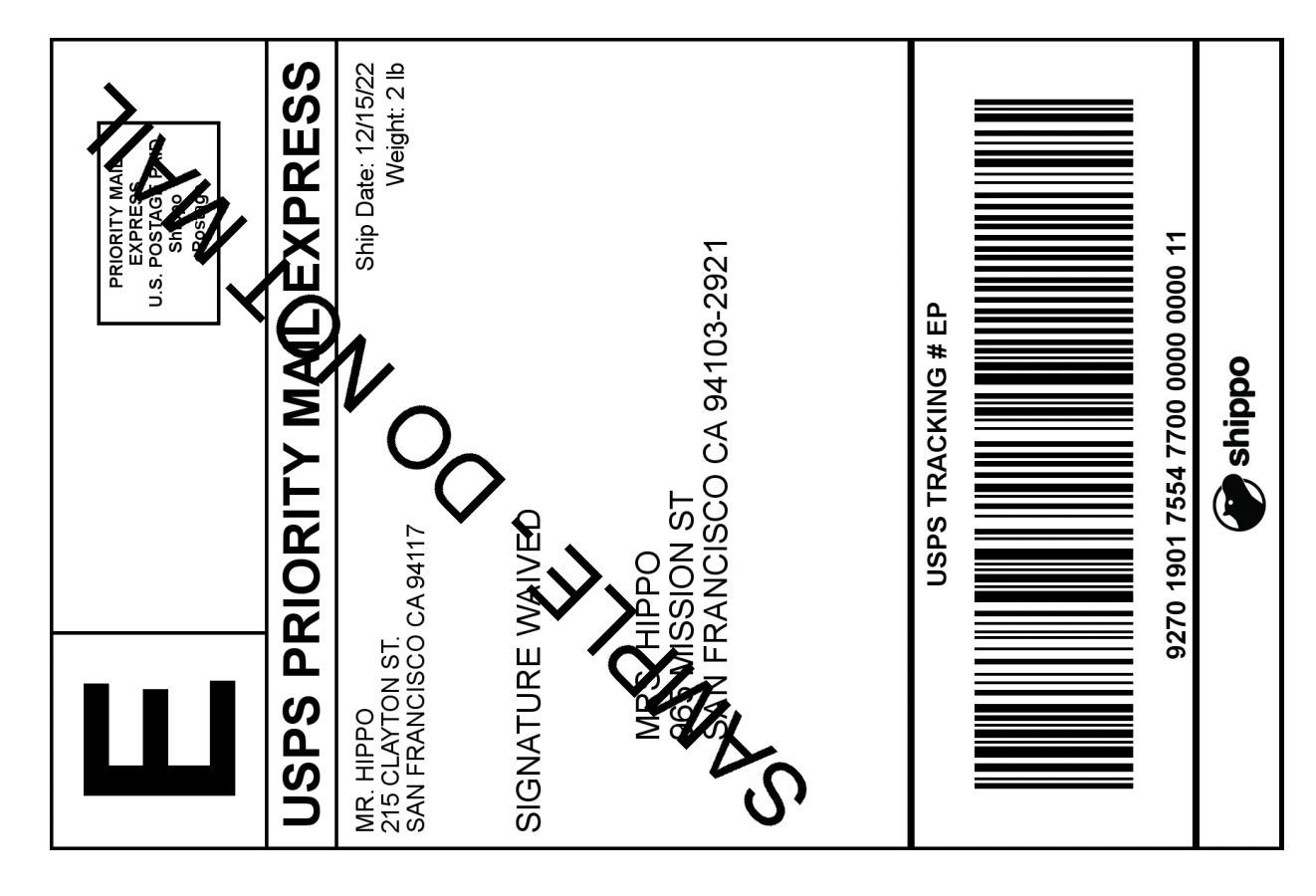 The easiest way to generate your first label is to use a rate generated by USPS. Some carriers require a different test account credential to show test rates and generate test labels. For more information about which carriers require a separate test account, see our [carrier capabilities page](/docs/Carriers/CarrierCapabilities).
## Notes About Test Mode
### Test Labels
* You cannot use test labels to ship a parcel.
* Rates requested in test mode may differ from actual rates in live mode.
* Test mode generates tracking numbers, but does not update the tracking information.
* Test mode currently does not work with the batch label process and manifesting. We are actively working on supporting these features.
### Test Data
* Refund requests in test mode will always return a success response, but no invoice item will be generated.
* When using the test key, you will only be able to access test data, not live data such as carrier accounts, transactions, and rates.
* When using the live key, you will only be able to access live data, not test data.
* Exception: If you have not upgraded your API and are continuing to use version 2014-02-11, your live key will remain unchanged and you will continue to see both test data and live data. This means that your Shipment object can return one of 3 different values for the variables test.
* True – All Rates returned in Shipment were tests.
* False – All Rates returned in Shipment were live.
* None – Rates returned in Shipment were both tests and live.
### Testing Carrier Accounts
* User-owned carrier accounts (where you have plugged in your own carrier credentials) created with test keys will only be available in test mode. To create live labels, users will need to connect their carrier accounts again using their live keys. Similarly, carrier accounts created using the live keys will not work in test mode.
* Shippo carrier accounts will not require this, the carrier account object\_ids will work for both test and live mode.
* Exception: If you have not upgraded your API and are continuing to use version 2014-02-11, you will not need to create separate test and live carrier accounts to view test data and create test labels when in live mode.
The easiest way to generate your first label is to use a rate generated by USPS. Some carriers require a different test account credential to show test rates and generate test labels. For more information about which carriers require a separate test account, see our [carrier capabilities page](/docs/Carriers/CarrierCapabilities).
## Notes About Test Mode
### Test Labels
* You cannot use test labels to ship a parcel.
* Rates requested in test mode may differ from actual rates in live mode.
* Test mode generates tracking numbers, but does not update the tracking information.
* Test mode currently does not work with the batch label process and manifesting. We are actively working on supporting these features.
### Test Data
* Refund requests in test mode will always return a success response, but no invoice item will be generated.
* When using the test key, you will only be able to access test data, not live data such as carrier accounts, transactions, and rates.
* When using the live key, you will only be able to access live data, not test data.
* Exception: If you have not upgraded your API and are continuing to use version 2014-02-11, your live key will remain unchanged and you will continue to see both test data and live data. This means that your Shipment object can return one of 3 different values for the variables test.
* True – All Rates returned in Shipment were tests.
* False – All Rates returned in Shipment were live.
* None – Rates returned in Shipment were both tests and live.
### Testing Carrier Accounts
* User-owned carrier accounts (where you have plugged in your own carrier credentials) created with test keys will only be available in test mode. To create live labels, users will need to connect their carrier accounts again using their live keys. Similarly, carrier accounts created using the live keys will not work in test mode.
* Shippo carrier accounts will not require this, the carrier account object\_ids will work for both test and live mode.
* Exception: If you have not upgraded your API and are continuing to use version 2014-02-11, you will not need to create separate test and live carrier accounts to view test data and create test labels when in live mode.